Quickstart
End-to-end walkthrough — from uvx musickit to playing a track on Amperfy from
across the room. Roughly 30 minutes of wall-clock time on a 200-album library;
most of it is the convert pipeline and the cover-pick loop.
The route this guide takes:
- Set up the Mac (musickit + ffmpeg + Tailscale)
- Convert a sample library
- Audit + auto-fix the warnings
- Pick covers for the flagged albums
- Start
musickit serve - Set up the iPhone (Tailscale + Amperfy)
- Connect Amperfy to the server and play a track
If you're new to Tailscale: it's a zero-config VPN that gives every device of
yours a permanent address (yourname.tail-something.ts.net) reachable from
anywhere with internet. We use it so the iPhone can reach the Mac whether
you're on the same Wi-Fi or somewhere else.
1. Mac setup
Install musickit
The lowest-friction way is uvx — it downloads the latest published musickit from PyPI, caches it, and runs it in one step. No install step required:
For daily / persistent use (PATH-installed, no per-run network check):
uv tool install musickit       # recommended (uv-managed, isolated venv on PATH)
pipx install musickit          # equivalent for pipx users
pip install musickit           # plain pip into current env
Either route pulls every Python dep, including the bundled FFmpeg + PortAudio wheels for the TUI / serve audio paths. The rest of this guide uses uvx musickit ... for examples — substitute musickit ... if you went the persistent-install route.
If you want to hack on MusicKit itself, see Development for the git clone + uv sync flow.
Install system ffmpeg
The bundled FFmpeg wheels handle audio decoding for the TUI and the on-the-fly
transcoding inside serve. The convert pipeline itself shells out to a
system ffmpeg / ffprobe:
Verify:
Install Tailscale on the Mac
Download the Mac client from https://tailscale.com/download/mac. Open the
installer, sign in with whichever identity you like (Google / GitHub / email
+ password). After login, the menu-bar Tailscale icon shows your tailnet
hostname — looks like mlaptop.tail4a4b9a.ts.net. Note that hostname; the
iPhone will use it later.
tailscale status                          # confirm the daemon is up
tailscale ip -4                           # your Tailscale IPv4
hostname -f                               # local hostname
Sanity-check musickit
You should see convert / library / inspect / tui / serve listed.
2. Convert a library
Drop a few albums into ./input/. Any layout works — the convert pipeline
handles Artist/Album/, Artist/Album/CD1/CD2/, scene-tagged dirs, and
flat dumps. For a quickstart run a sample of 5–20 albums is enough.
Default output is output/<Artist>/<YYYY> - <Album>/NN - <Title>.m4a at
256 kbps AAC. A 200-album library on an SSD takes 5–10 minutes; an
external USB drive or a network mount takes longer. Run with --verbose
if you want a per-track log line; --dry-run plans without writing.
When it finishes you have a clean library at ./output/. The rest of the
guide points at that directory.
3. Audit + fix
Shows a table of every album with at least one warning: missing cover, missing year, mixed years, scene-residue dirnames, tag/path mismatch, track gaps. You can ignore most of these for a first run; the deterministic ones get fixed by:
The fixer makes one MusicBrainz HTTP call per flagged album to backfill
missing years, then renames directories to match the canonical
YYYY - Album form. A progress bar shows what it's doing — a quiet pass
for clean albums means there's nothing to fix.
For the cover-art warnings, the semi-automated path is:
Per album, this:
- Prints
Artist — Album (no cover). - Opens
https://covers.musichoarders.xyz/?artist=...&album=...in your browser, pre-filled. - Click any cover on that page; musichoarders' UI puts the image URL on your clipboard.
- Paste it back into the terminal.
sto skip,qto quit. - musickit downloads, validates with Pillow, resizes to fit
--cover-max-edge(default 1000 px), saves ascover.jpg, embeds into every track.
Run library audit --issues-only again to confirm the warning count
dropped.
4. Start the server
By default this:
- binds
0.0.0.0:4533(LAN + Tailscale) - starts a filesystem watcher for auto-rescan (drops new albums in → visible to clients within seconds)
- advertises itself on mDNS as
_subsonic._tcp.local - uses default credentials
admin / adminwith a yellow warning
You'll see a startup banner like:
musickit serve — Subsonic API for ~/Music
  bind: 0.0.0.0:4533
  LAN:  http://192.168.1.42:4533
  Tailscale: http://mlaptop.tail4a4b9a.ts.net:4533

scanning library…
   142 artists, 318 albums, 4521 tracks

  mDNS: advertising as musickit-mlaptop._subsonic._tcp.local
  watching ~/Music for changes (auto-rescan on add/remove/rename)
Note the Tailscale URL — that's what the iPhone will use.
For anything beyond a private LAN, set proper credentials. The simplest path:
mkdir -p ~/.config/musickit
cat > ~/.config/musickit/musickit.toml <<'EOF'
[server]
username = "your-username"
password = "your-strong-password"
EOF
Restart musickit serve — the yellow warning is gone.
(If you're upgrading from a pre-v0.11 install with a serve.toml, run
musickit config migrate once to move it to the new format.)
Leave the server running. You can also run it as a background process via launchd / systemd; see Serve for examples.
5. iPhone setup
Install Tailscale on the iPhone
App Store → "Tailscale" → install. Sign in with the same identity you
used on the Mac. Once connected, the Tailscale app shows the same tailnet
as on the Mac, with mlaptop (or whatever your Mac's hostname is) listed
under Devices.
In Tailscale settings, enable Use Tailscale DNS so the
*.tail-...ts.net hostnames resolve from any Wi-Fi.
Quick check from a browser on the iPhone:
You should see a JSON probe response like:
{
  "name": "musickit",
  "version": "0.1.0",
  "type": "subsonic-compatible",
  "api": "/rest/",
  "spec": "https://opensubsonic.netlify.app/docs/api-reference/"
}
If that loads, the iPhone can reach the server.
Install Amperfy
App Store → "Amperfy" → install. (Amperfy is the Subsonic client we recommend for iOS. play:Sub, iSub, Substreamer all work too — Amperfy is the most feature-complete, including OpenSubsonic extensions and synced lyrics.)
Connect Amperfy to musickit serve
Open Amperfy → first-launch screen prompts for a server. Fill in:
- Server URL:
http://mlaptop.tail4a4b9a.ts.net:4533(your Mac's Tailscale URL — no trailing slash, no/rest). - Username:
admin(or whatever you put inmusickit.toml). - Password:
admin(or whatever you put inmusickit.toml).
Tap Login. Amperfy probes /rest/ping, then /rest/getMusicFolders
and /rest/getArtists to populate the library. On first connect with a
~300-album library this takes 2-5 seconds.
If login fails, the most common causes are:
- Tailscale not connected on the iPhone (check the menu icon).
- Wrong port (musickit serve uses 4533 by default; some other Subsonic servers use 4040).
- HTTPS expected but not configured. Default
serveis plain HTTP. If Amperfy asks for HTTPS, leave the URL ashttp://and accept the insecure-warning toggle in Amperfy's settings — fine over Tailscale, which encrypts the underlying connection.
Play a track
Browse → Artists → pick one → pick an album → tap a track. Amperfy starts streaming. The first few seconds may be a fraction slower than a local file (HTTP buffer fill), then steady-state is real-time.
Try the things you'd expect from a Subsonic client:
- Background play — start a track, lock the iPhone, the audio keeps going.
- Lock-screen controls — pause / next / prev work.
- Seek scrubber — Amperfy uses the Subsonic
transcodeOffsetextension (which musickit advertises) for accurate mid-track resume. - Search —
/rest/search3matches against artist, album, and track titles.
6. Optional: browse + play locally on the Mac
If you also want to browse the same library on the Mac itself:
This is the TUI — three-pane Textual app, library browser on the left, now-playing card + 48-band visualizer + tracklist on the right.
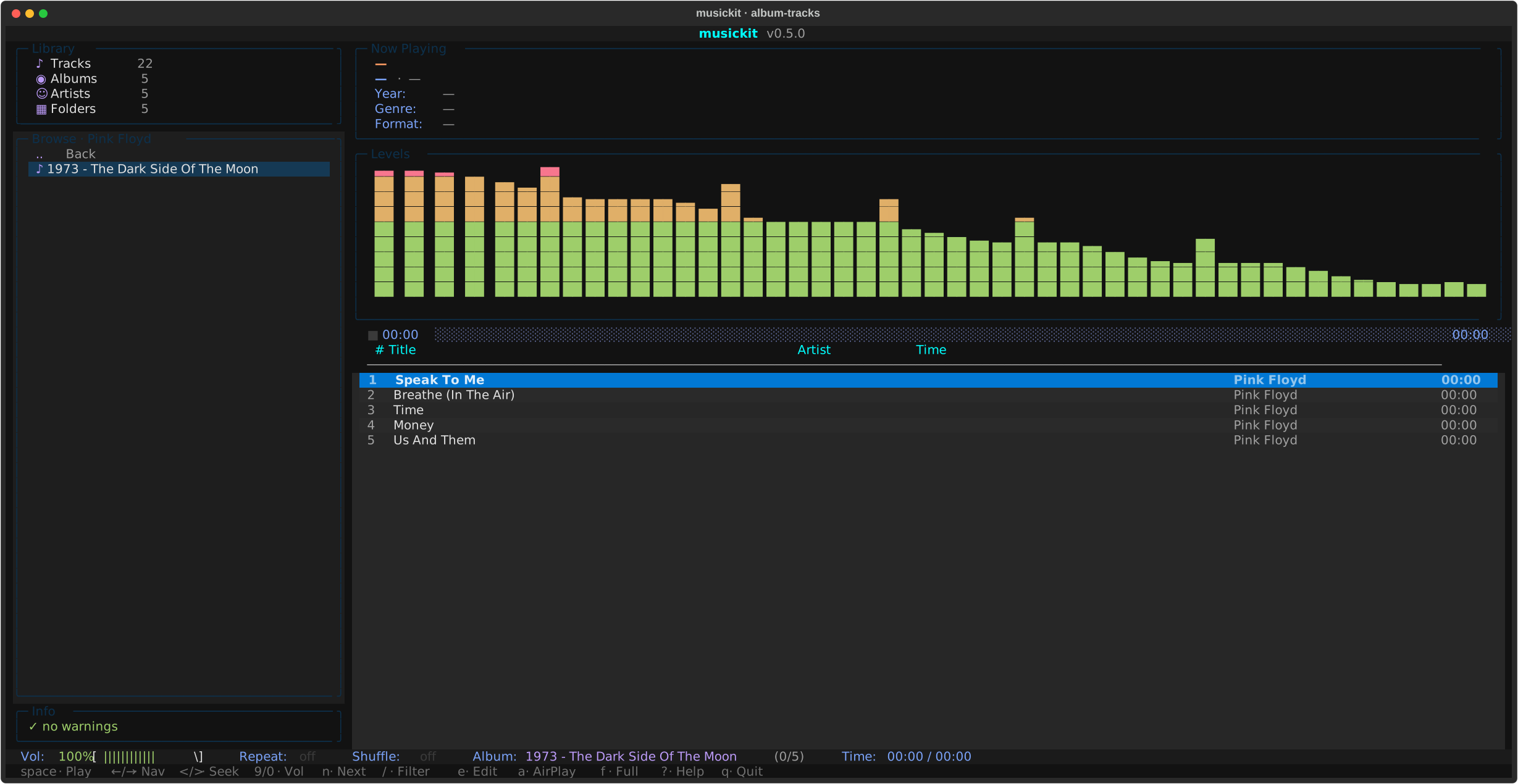
Press ? for the full keybindings panel; the most useful ones to know are Enter (play), Space (pause), n/p (next/prev), </> (±5s seek), 9/0 (volume), / (filter the focused pane), f (fullscreen visualizer), q (quit). Click anywhere on the progress bar to seek to that position.
If the Mac has AirPlay devices on the same network (HomePod, AirPort
Express, AirPlay-2 Sonos), the TUI can route playback to them.
Press a for the AirPlay picker, pick a device, music plays through
the speaker instead of the laptop. Iterate with --airplay 'HomePod'
on the CLI for headless / scripted use.
This is unrelated to the iPhone setup — it's about playback on the Mac
itself. The Subsonic-client mode in musickit tui --subsonic ... lets
you also use the TUI as a Subsonic client to a remote musickit serve.
7. Day-to-day
Once it's running:
- Add albums — drop new dirs into
./output/(or wherever you pointedserve). The watcher picks them up within ~5 seconds. New album appears in Amperfy's library on next pull-to-refresh. - Edit tags —
musickit library retag <album-dir> --year 2020,--album-artist 'New Name', etc. The watcher catches the file mtime changes and re-reads only that album. - Replace covers —
musickit library cover <album-dir> new.jpgembeds the new cover into every track. - Audit periodically —
musickit library audit ./output --issues-onlysurfaces newly-introduced warnings (a recent rip might have unexpected scene tags). - Inspect a single track —
musickit inspect path/to/track.m4apretty-prints its tags, embedded picture, ReplayGain.
Troubleshooting
Amperfy says "Server unreachable"
Check, in order:
- Is
musickit servestill running? Restart if not. - Is Tailscale connected on the iPhone? Open the app and confirm.
- Can you load the JSON probe URL in Mobile Safari? If yes, the transport works — the issue is in Amperfy's auth / URL setup.
- Did you put the URL in correctly (no trailing slash, no
/rest)?
Symfonium / play:Sub / Feishin instead of Amperfy
The Subsonic API is identical — only the client UI changes. URL +
credentials work the same. musickit specifically advertises the
formPost, transcodeOffset, multipleGenres, songLyrics
OpenSubsonic extensions; Amperfy and Symfonium are the two clients
that exercise all of them, so they get the most polished UX.
"Slow" library scan
The first launch of serve against a fresh library does a full
filesystem walk + tag read. After that, the SQLite index at
<output>/.musickit/index.db is hydrated and only filesystem deltas
are re-scanned. If a launch ever feels mysteriously slow, run:
to inspect the DB and confirm it exists. --full-rescan (on tree or
any other library subcommand) wipes + rebuilds the cache.
I want to expose the server to the open internet
Don't, for v1 — the auth is HTTP Basic over plain HTTP. Wrap it in a reverse proxy (Caddy / nginx) with HTTPS termination, or stick with the Tailscale-only model where Tailscale's WireGuard tunnel does the encryption + access control for you.
Where to read next
- Architecture — how all the pieces fit together, including the audio engine subprocess and the SQLite index lifecycle.
- Library — every audit rule, every fix, every index management command.
- Serve — full Subsonic endpoint list, transcoding, mDNS, watcher behavior, client compatibility matrix.
- TUI — local + radio + Subsonic-client + AirPlay modes, keybindings, layout.